


Step 1️⃣ Download the App IPTV Smarters Player APP

🔹 For Android Users

  1. Open Google Play Store

  2. Search for “IPTV Smarters Player”

  3. Tap Install

👉 Alternatively, download the Android APK directly from  the link below.

or click the button below:

🔹 For Apple (iPhone / iPad) Users

  1. Open the App Store

  2. Search for “IPTV Smarters Player Lite”

  3. Tap Download

👉 Alternatively, download the IOS directly from  the link below:
Step 2️⃣ Open the App

After installation:

  1. Launch IPTV Smarters

  2. Accept the Terms & Conditions

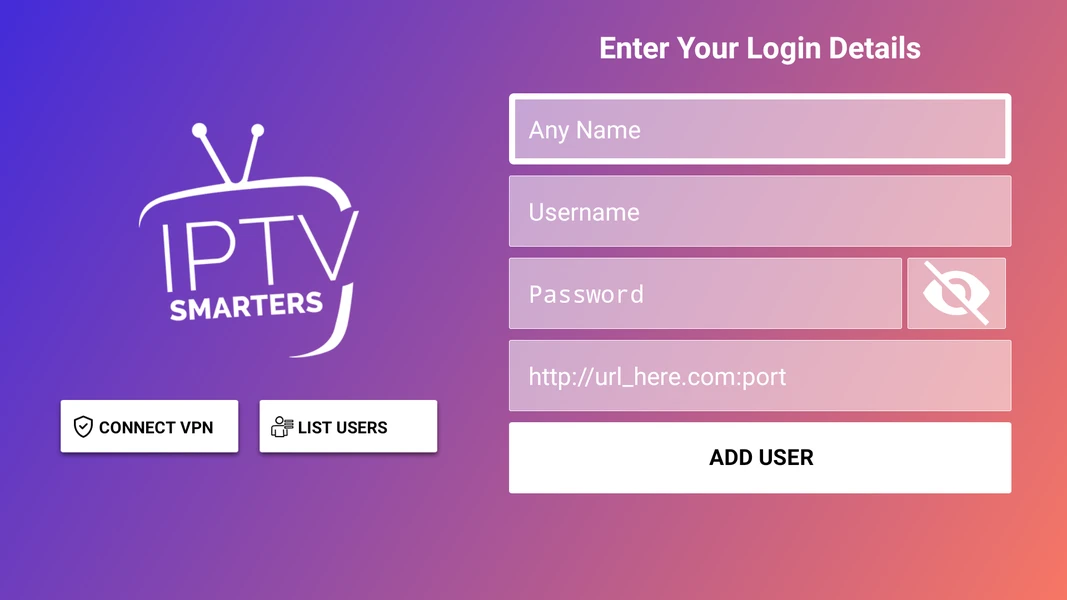
Step 3️⃣ Add Your Account (Login Setup)
Tap Add User


Step 4️⃣ Wait for Channels to Load

The app will:

  • Download channels

  • Load Movies & Series

  • Sync (TV Guide)

This may take 10–30 seconds depending on internet speed.

Step 5️⃣ Start Watching 🎬

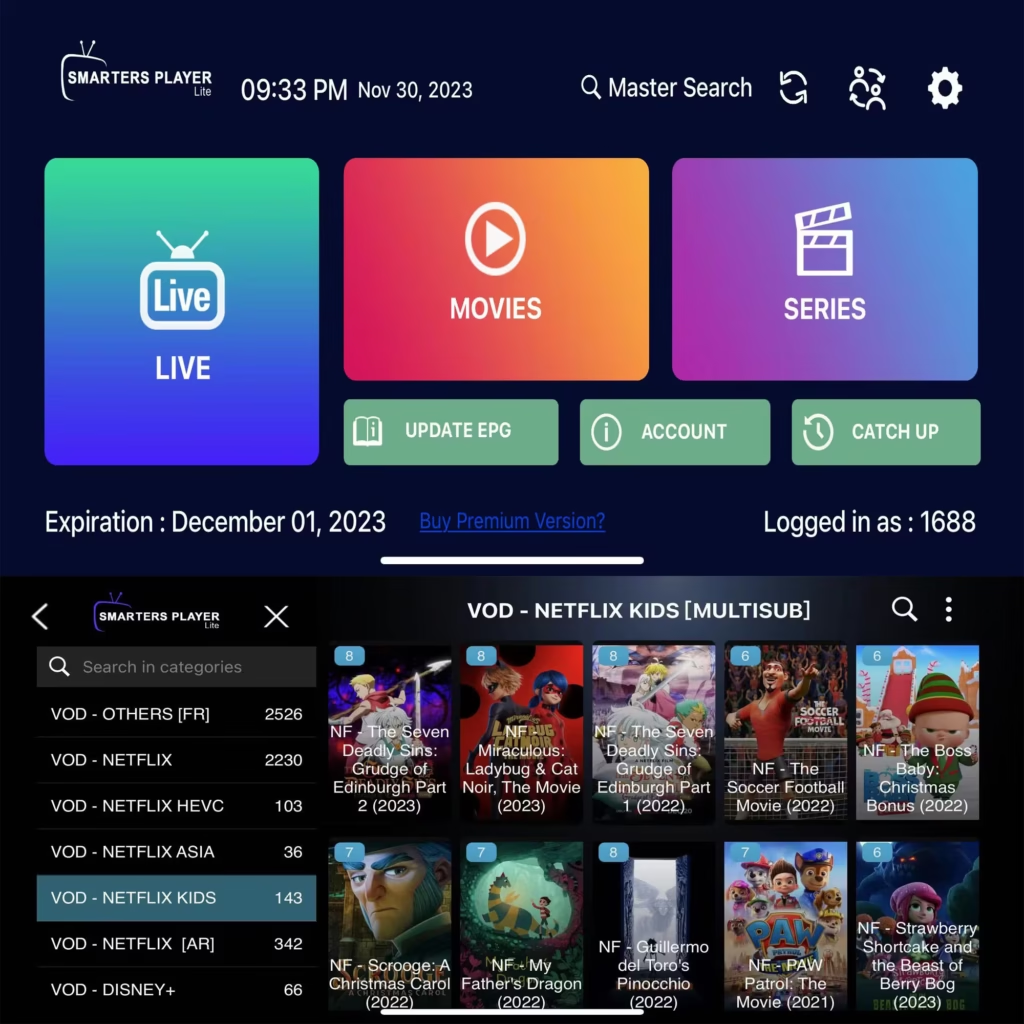
From the main dashboard:

  • 📺 LIVE → Watch live TV

  • 🎥 MOVIES → On-demand movies

  • 📂 SERIES → TV series

Frequently Asked Questions

How to Allow App Installations from Unknown Sources?

If you are trying to install unknown apps on Android and it’s not installing, check for the Unknown Sources feature on your phone. This post will walk you through the step-by-step process to allow app installations from unknown sources for a hassle-free experience.

How to install Apps From Unknown Sources?

To allow the apps to be downloaded from Unknown Sources, follow the below steps:

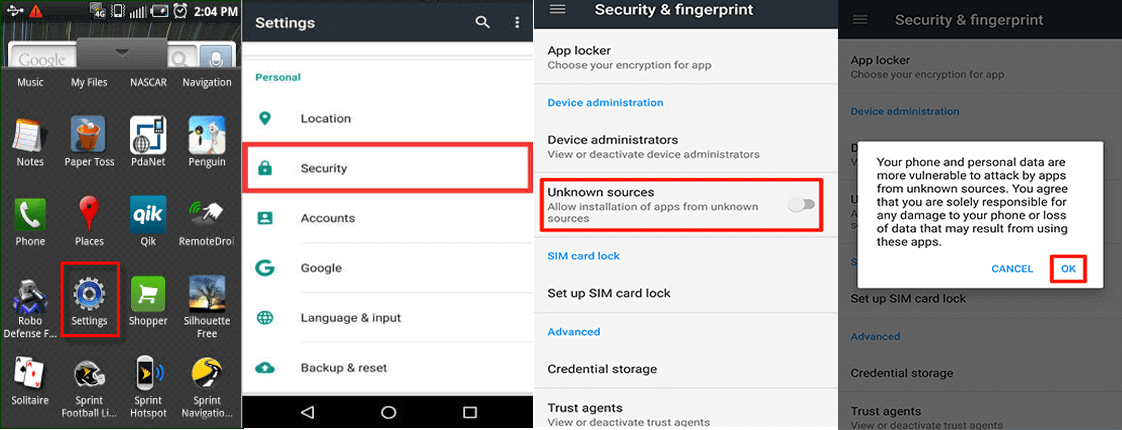
Step 1: Open Settings on Your Device

First, go to Settings on your Android device where clicking on it will open the settings panel.

Step 2: Go to the Security Section

On the Settings panel, go to the Security section. This option can vary depending on the device model and OS.

Step 3: Select the “Unknown Sources”

Here, you can see the “Unknown Sources” option. It manages installation from any third-party sources that should be installed or not. This option is disabled by default.

Step 4: Enable Unknown Sources

Here you have to switch on the option after which you will get a message to enable your device. It states the risk that your device can get after installing third-party apps. You have to click on “OK”.

Step 5: Exit from Settings Option

Now, it’s time to exit from the settings menu.

That’s it. Now you can easily install any apps from other sources on your device by simply clicking on APK files and you will not get any prompt before installation. This can work until the feature is enabled on your device and you will not face any issues.
🔧 Troubleshooting Tips

If channels do not load:

  • ✔ Check your internet connection

  • ✔ Make sure login details are correct

  • ✔ Confirm your subscription is active

  • ✔ Restart the app

  • ✔ Contact support if issue persists

Steps to Enable APK Installation:
  • Android 8.0 (Oreo) and Newer:
    • Navigate to Settings.
    • Tap Apps & notifications (or just Apps).
    • Select Special app access (or Advanced).
    • Tap Install unknown apps.
    • Choose the browser (e.g., Chrome) or file manager app you used to download the APK.
    • Toggle Allow from this source to ON.
  • Android 7.0 and Older:
    • Go to Settings.
    • Select Security.
    • Check the box for Unknown Sources.
Important Security Note: Only install APK files from trusted sources, as they can potentially harm your device.
If you are still having issues, you may need to disable the Google Play Store’s “Protect” feature temporarily or ensure your file manager has the necessary permissions.